



How to Connect Printer to Wi-Fi (Step-by-Step)
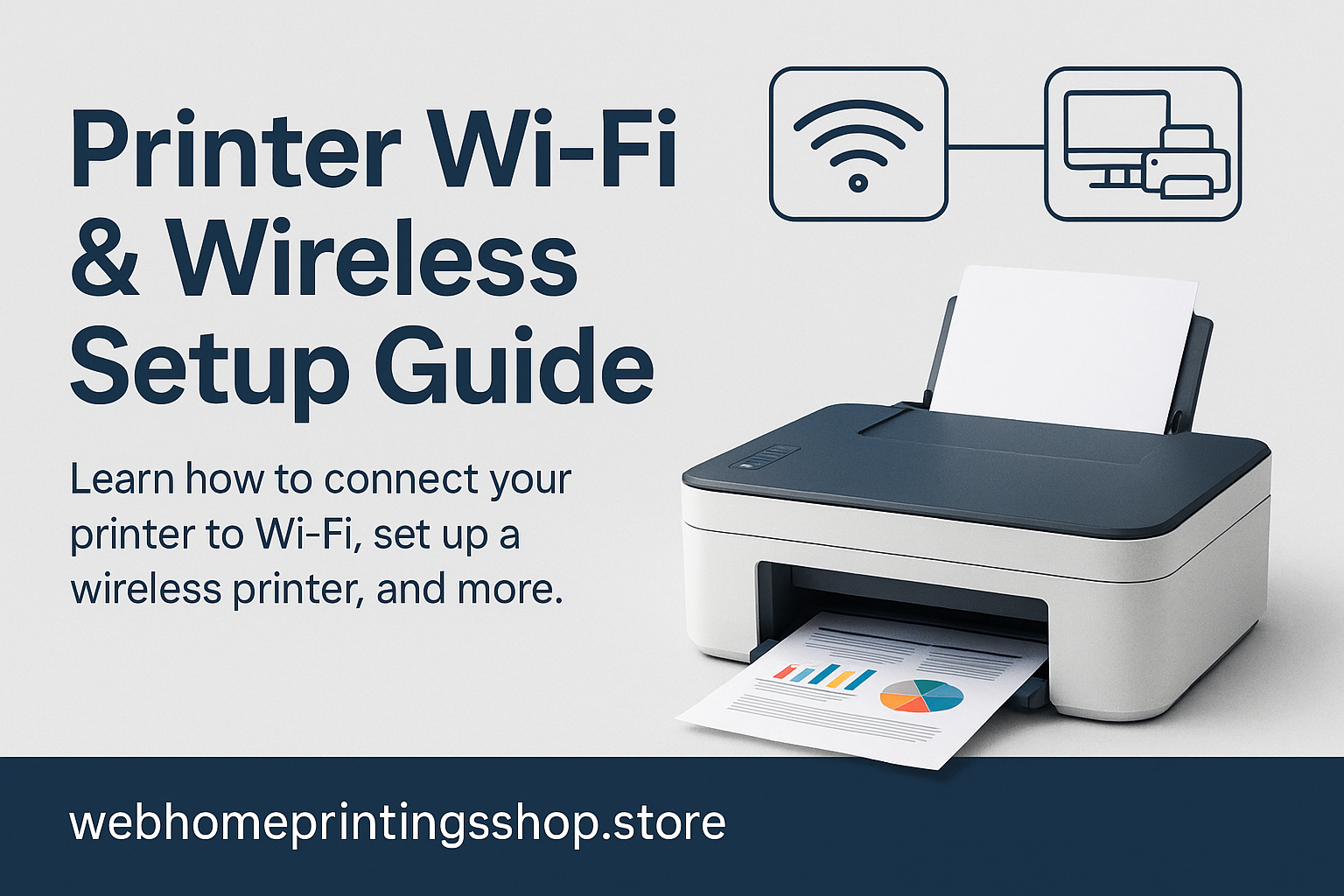
Use these steps to connect a wireless printer to Wi-Fi. This covers common menus and methods used by most models — ideal for refurbished printers and new devices alike.
Standard Wi-Fi Setup (Printer Control Panel)
- Power on the printer and ensure it is in ready/idle state.
- Open the Network or Wireless settings on the printer’s control screen.
- Choose Wi-Fi Setup Wizard (or similar) and select your home network (SSID).
- Enter your Wi-Fi password carefully (case sensitive) and confirm.
- Wait for the printer to show a connected confirmation or Wi-Fi icon.
- On your computer, go to Settings → Printers & Scanners and add the discovered printer.
WPS Quick Connect (If supported)
- Press the WPS button on your router (3–6 seconds) until it starts seeking devices.
- On the printer, choose WPS from the wireless menu to connect automatically.
- Connection should complete within one minute; confirm via the printer’s Wi-Fi icon.
Printer Not Connecting to Wi-Fi / Printer Offline — Troubleshooting
If your printer is not connecting to Wi-Fi or appears printer offline, work through these checks in order. Most connection issues are resolved by restarting devices and verifying network settings.
Restart & Basic Checks
- Restart your printer, router, and computer (turn off, wait 10 seconds, then turn on).
- Confirm printer and computer are on the same Wi-Fi network (not the guest network).
- Re-enter Wi-Fi password on the printer (passwords are case sensitive).
Network & Router Settings
- Check if the router has MAC filtering enabled — if so, add the printer’s MAC address or disable filtering.
- Ensure the router allows devices to see each other (AP Isolation or Guest Mode off).
- Try switching the router channel or temporarily disabling QoS features.
Printer Status & Driver Checks
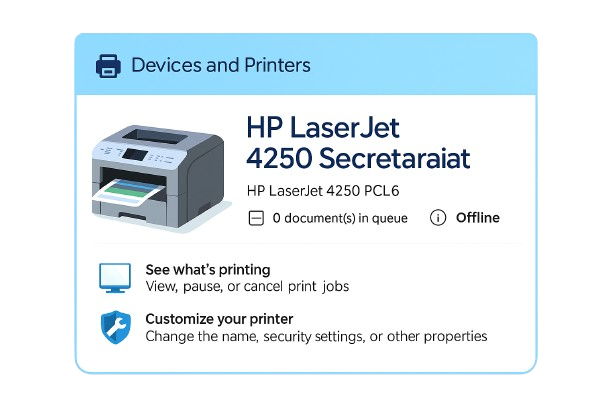
- Open Devices and Printers (Windows) → right-click your printer → choose Use Printer Online if available.
- Remove and re-add the printer from the OS if it appears offline after network changes.
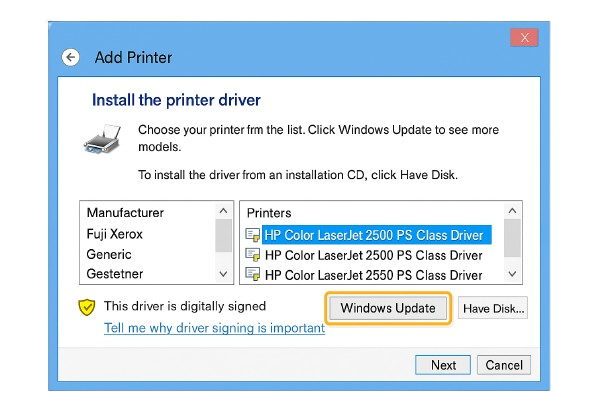
- Ensure the correct printer driver is installed — use the driver suggested by the OS or the official driver link on the product page.
How to Connect Printer to Computer (Windows & macOS)
Windows (USB or Wireless)
- USB: Connect the printer USB cable to your computer and follow on-screen prompts. Windows usually installs a suitable driver automatically.
- Wireless: Make sure the printer is on the Wi-Fi network. Go to Settings → Devices → Printers & Scanners → Add a printer or scanner → choose the printer from the list.
- If Windows cannot find your printer, click The printer that I want isn't listed and choose to add by IP address or find a network printer.
macOS
- Open System Preferences → Printers & Scanners.
- Click the plus (+) button and select your printer from the list (or add by IP).
- macOS often uses AirPrint drivers for basic printing; for full functionality install the manufacturer's driver if needed.
Printer Scanner Setup — Scan from PC or Mac
All-in-one printers include scanning features. Use the manufacturer’s scan utility or your OS scanning apps.
- Install the printer/scanner driver or the operating system’s scanner plugin.
- Open your scan app (Windows Scan, Windows Fax & Scan, or Preview on Mac).
- Place the document on the glass or in the document feeder.
- Choose resolution and file type (PDF/JPEG) and click Scan.
For advanced features (OCR, multi-page PDF, color correction), install the full software package from the manufacturer’s official support page (links below).
Mobile Printing — Print from Phone or Tablet
Printing from mobile devices is simple once the printer is on the same Wi-Fi network as your phone or tablet.
- iPhone & iPad: Use Apple AirPrint — open the document/photo → Share → Print → select printer.
- Android: Use the Default Print Service, Mopria, or the printer manufacturer’s app. Open the file → Share → Print → choose the printer.
- Some printers offer direct Wi-Fi (Wi-Fi Direct) to print without joining the same network — follow the printer’s Wi-Fi Direct instructions if needed.
Official Driver & Support Links
For drivers, firmware updates, and model-specific setup instructions always use the official manufacturer pages. We do not host third-party downloads.
FAQ — Quick Answers
- My printer shows “printer offline” — what should I do?
- Restart printer, router, and computer; ensure devices are on the same Wi-Fi; use Use Printer Online in Windows; re-add the printer if necessary.
- Why won’t my printer connect to Wi-Fi but other devices can?
- Check printer Wi-Fi compatibility (2.4GHz vs 5GHz), confirm SSID/password, and verify there is no AP isolation or MAC filtering active on the router.
- Can I connect my printer directly to my phone?
- Yes — use AirPrint (iOS) or Mopria/Default Print Service (Android) when the phone and printer share the same Wi-Fi. Some printers also offer Wi-Fi Direct for direct connections.
- Do I need to download drivers to connect my printer?
- Often modern OSes auto-install basic drivers. For full functionality, download drivers from the manufacturer’s official support page (links provided above).
Disclaimer: webhomeprintingshop.store provides general setup guidance for printers. We are an independent reseller and are not affiliated with or endorsed by any printer manufacturer. For official software, drivers, and model-specific instructions, use the manufacturer’s support site.